How to add an affirmation widget to your iPhone home screen
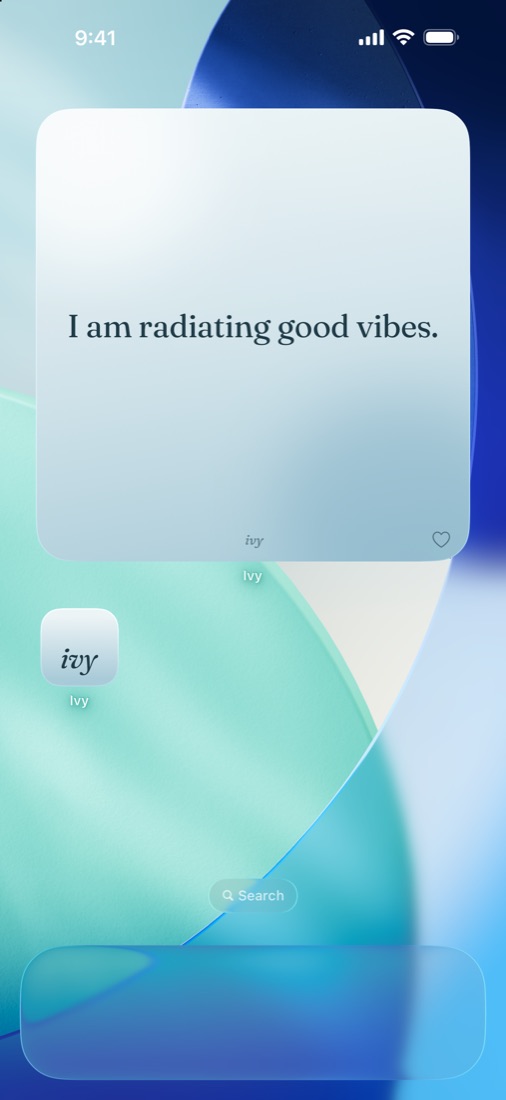
To add an affirmation widget on iPhone, install an affirmation app that offers widgets, touch and hold an empty spot on your home screen until the apps jiggle, tap Edit, then Add Widget, search for the app, pick a size and tap Add Widget. The steps below use Ivy, but they're the same for any app.
You unlock your phone dozens of times a day. A widget turns a few of those moments into a reminder of how you want to talk to yourself.
How to add the Ivy widget to your home screen: step by step
- Install Ivy and open it once. The widget needs the app to have run once so it has affirmations to show.
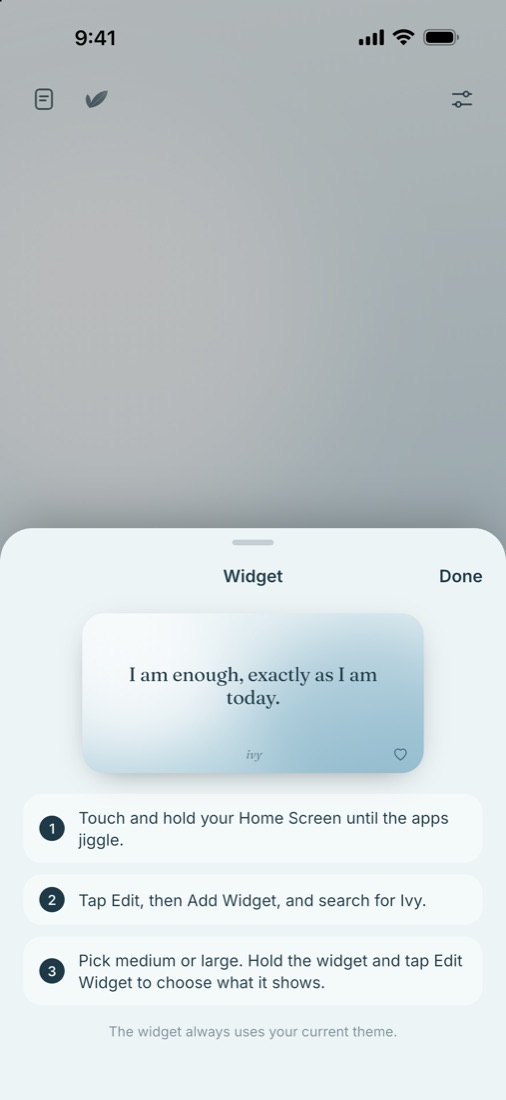
- Touch and hold your home screen. Press on an empty area until the apps start to jiggle.
- Tap Edit, then Add Widget. Edit is in the top left corner. Then search for Ivy in the widget gallery.
- Pick medium or large. Swipe to the size you want and tap Add Widget, then Done.
- Choose what it shows. Touch and hold the widget and tap Edit Widget. Choose All, Favorites or Mine, and how often it changes.
What the Ivy home screen widget can do
The Ivy widget uses your current theme, so it matches the look you picked in the app. Tap it and the next affirmation appears without opening Ivy. When it shows all affirmations, a heart lets you save a line to Favorites straight from the home screen.
Through Edit Widget you can set each widget separately. Put one with your own affirmations on your first page and another with favorites on the second, for example.
How to add an affirmation widget to the lock screen
Lock screen widgets show a line before you even unlock your phone. To add one:
- Touch and hold your lock screen until Customize appears, then tap it.
- Choose Lock Screen and tap the widget area below the clock.
- Find Ivy and pick a widget: rectangular, inline (the small line above the clock), or circular.
- Tap the widget to set what it shows, then tap Done.
The rectangular widget comes in several styles, from plain system text to serif and quote layouts. The inline widget only shows affirmations short enough to fit (28 characters or fewer). One circular widget shows your ritual vine and how close you are to the next leaf, and another shows how many favorites you have.
Which affirmations to show on your widget
If you're new to affirmations, start with All. The widget will rotate through your chosen topics and you'll find favorites along the way. Once you have a handful you love, switch to Favorites so the widget repeats the lines that matter.
Mine is for affirmations you wrote yourself. Our guide on how to write your own affirmations helps if you're not sure where to start.
Widget not showing up?
- Open Ivy once after installing, then try again.
- The Ivy home screen widget needs iOS 17 or later.
- If the widget looks blank, restart your iPhone. iOS sometimes needs a moment to load new widgets.
- Search the widget gallery for "Ivy" rather than scrolling.
Widgets work best with a daily habit
A widget is passive: you see a line, maybe read it, then open your messages. That's still useful, but the effect is stronger when you also say a few affirmations on purpose each day. See our daily affirmation routine guide for a two minute setup.
More questions
How often does the affirmation widget change?
You choose the rhythm in Edit Widget. You can also tap the home screen widget any time for the next affirmation.
Can I have more than one affirmation widget?
Yes. Each widget has its own settings, so one can show favorites and another your own affirmations.